Last updated: 14 September 2026. All procedures verified on that date. Prepared by our travel documentation editorial team.
Disclaimer: This is an independent informational guide, not affiliated with the Government of Pakistan, NADRA, or FIA. Always verify requirements on visa.nadra.gov.pk.
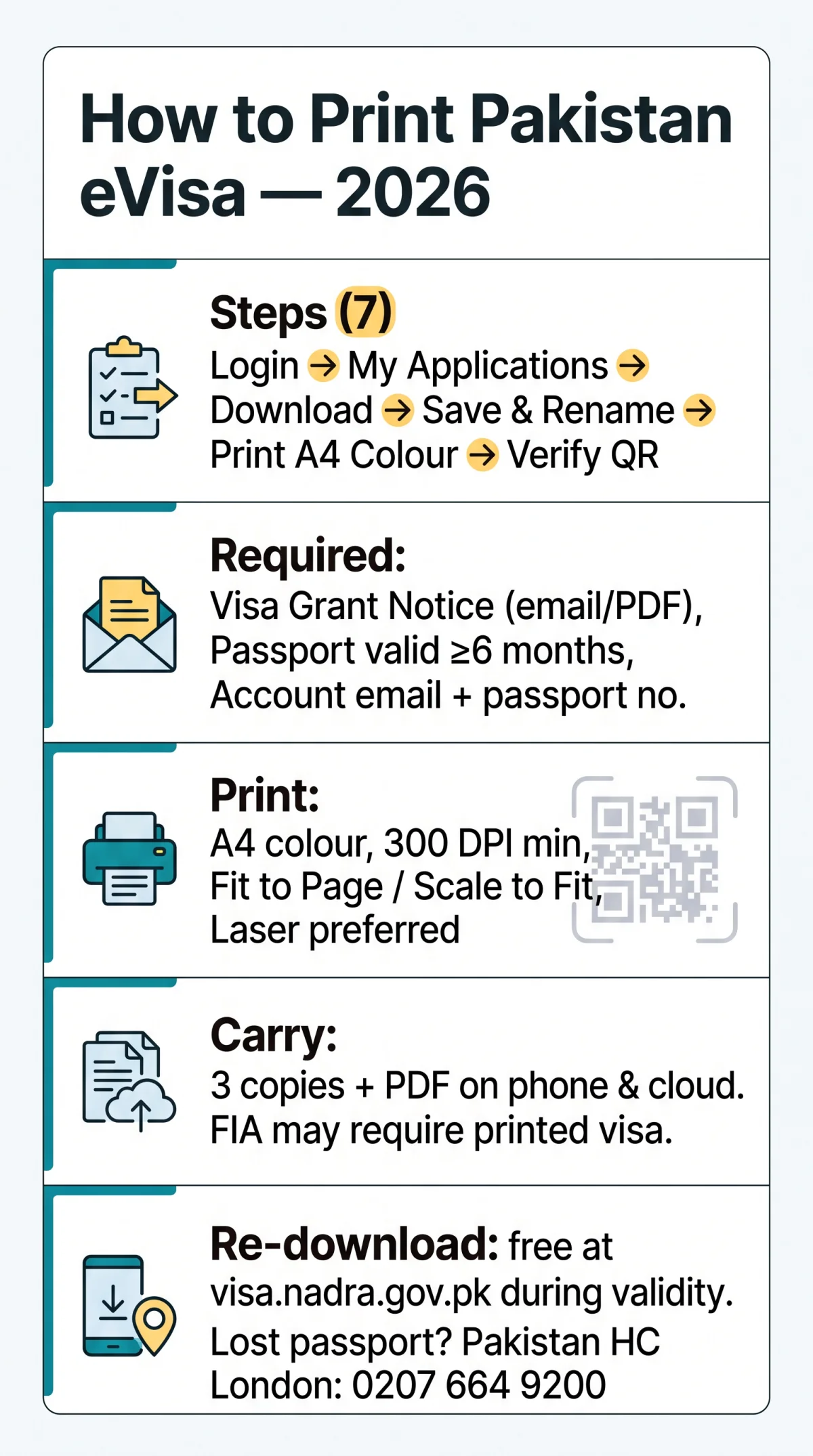
To print your Pakistan eVisa in 2026, log in to visa.nadra.gov.pk, navigate to My Applications, click Download next to your approved visa, and save the PDF. Print on A4 paper in colour with “Fit to Page” enabled. Carry at least three copies; re-download is free at any time during validity.
What You Need Before Downloading Your Pakistan eVisa
Your Pakistan eVisa download requires three verified items: the confirmation email containing your Visa Grant Notice or ETA, a passport with at least 6 months validity from your date of entry (per mofa.gov.pk), and the email address plus passport number used to create your account at visa.nadra.gov.pk. For a full breakdown of what documents you need, see our Pakistan eVisa requirements checklist for UK travellers.
The Pakistan eVisa system has been mandatory and fully online since 1st January 2021. The Government of Pakistan does not collaborate with any third-party website. Your application fee was paid online by credit or debit card; an unpaid application will not have been approved. For details on accepted Pakistan eVisa payment methods, including cards and bank transfers, refer to our dedicated guide.
Common pitfalls: the confirmation email may be caught in spam filters, an expired session requires fresh login, and a passport expiring within 6 months can invalidate the visa. Locate your reference number in the confirmation email; it will appear on the downloaded PDF. For current information, visit the NADRA FAQ at visa.nadra.gov.pk/faqs.
How to Download Your Pakistan eVisa as a PDF (Step by Step)
Your Pakistan eVisa PDF is downloaded from the NADRA portal dashboard. If you are new to the system, our step-by-step guide to applying on the NADRA portal covers the full account setup process:
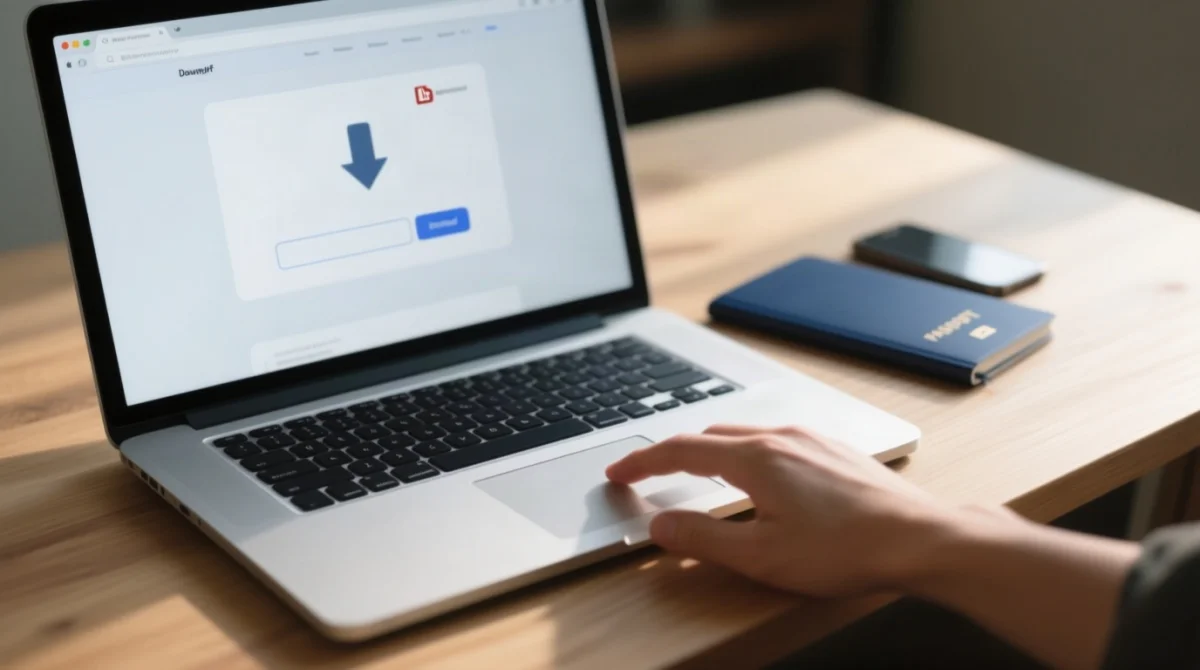
Go to visa.nadra.gov.pk and click “Login.”
Access the NADRA portal to begin the download process.
Enter your credentials
Use the email address and passport number from your application.
Navigate to “My Applications”
Open the dashboard section where your submitted applications are stored.
Locate the “Approved” entry
Find the application with “Approved” status in the list.
Click “Download”
Select the Download button next to the approved entry.
Save and rename the PDF
Save to your device and rename clearly, e.g. Surname_Pakistan_eVisa_2026.pdf.
Verify the PDF contents
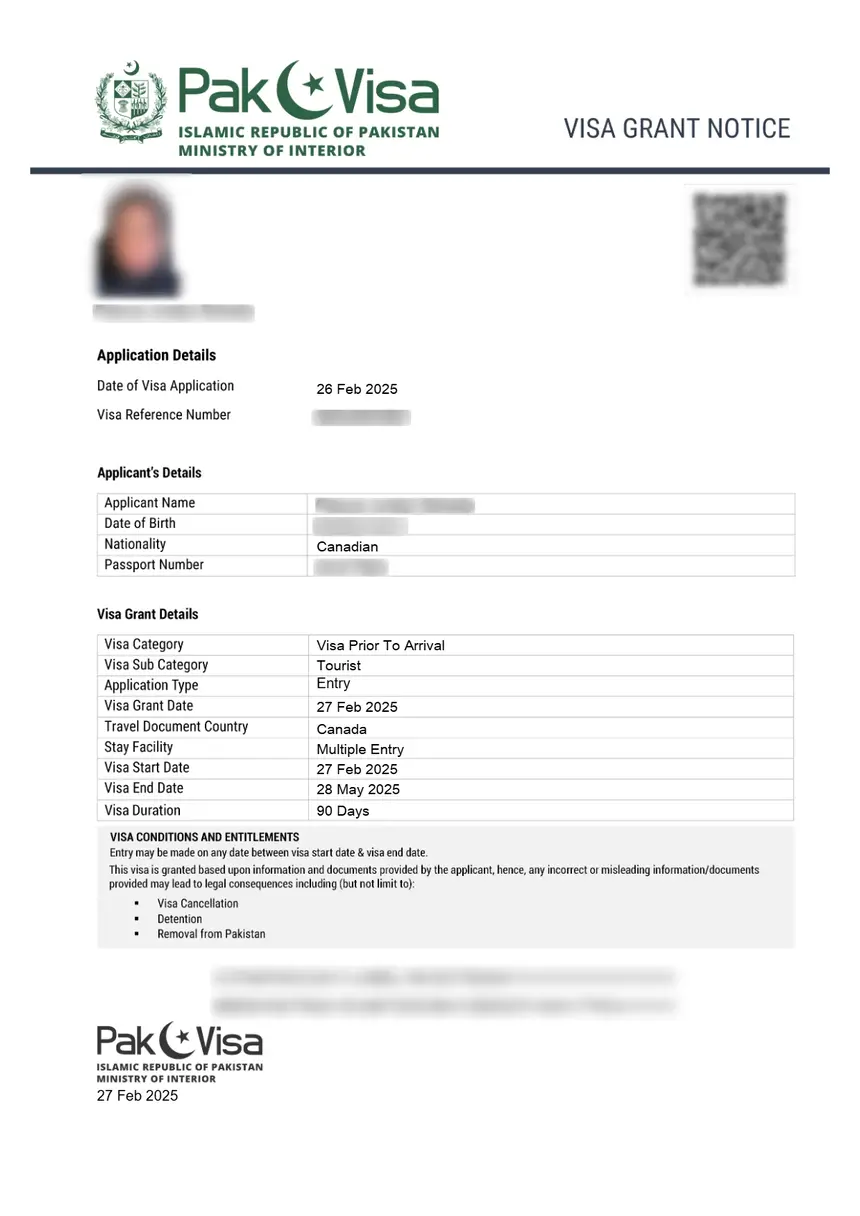
Confirm your personal details, visa validity dates, and QR code are visible.
Your Pakistan eVisa PDF can also be downloaded directly from the confirmation email attachment. Mobile users should save the PDF and open it in Adobe Reader, not the email app’s built-in viewer.
Troubleshooting: disable your browser’s pop-up blocker if a blank window appears, use Adobe Reader if the browser viewer fails, clear cache if the file is corrupted, or try Chrome, Firefox, or Edge if one browser fails. If the portal itself is inaccessible, see our guide on why the Pakistan eVisa website may not be working.
Visa Grant Notice vs ETA: Which Document Should You Print & How?
The Visa Grant Notice is your full approved Pakistan eVisa. The ETA (Electronic Travel Authorization) is NOT the visa; it only authorises travel to seek a Visa on Arrival at the FIA counter. To understand the differences in detail, read our comparison of Pakistan eVisa vs Visa on Arrival.
| Feature | Visa Grant Notice | ETA |
|---|---|---|
| What it is | The full approved Pakistan eVisa | Travel authorisation for Visa on Arrival |
| Is it the visa? | Yes | No |
| Applies to | All eVisa categories | Visa On Arrival categories only |
| What to print? | Print and carry | Print only if your category requires it |
Print your Pakistan eVisa on A4 paper in colour at 300 DPI minimum. Enable “Fit to Page” to prevent cropping the QR code or margins. Laser printers are preferred over inkjet for durability. After printing, scan the QR code with your phone; reprint at higher resolution if it does not scan.
The NADRA portal includes a Verification button to confirm your Pakistan eVisa is authentic and active before departure.
How Many Copies, Phone vs Print, and Where to Print in the UK
Print at least three copies of your Pakistan eVisa: one in your passport holder, one backup in checked luggage, and one digital PDF on your phone and in cloud storage.
The FIA requires a printed Pakistan eVisa at border control; a digital copy may be accepted but is not guaranteed. Airlines may also insist on print at UK departure. Always carry the printed Pakistan eVisa as your primary document.
Who may request your printed Pakistan eVisa: FIA immigration officers, airline check-in staff, hotel reception, and internal security checkpoints.
Where to print in the UK:
| Option | Approximate Cost |
|---|---|
| Public libraries | £0.10-£0.50 per page |
| Ryman / WHSmith | £0.25-£1.00 per page |
| FedEx Office / Copy shops | £1.00-£5.00 per page |
| Hotel business centre | Often free for guests |
Lost Your Pakistan eVisa? How to Re-Download It
A lost Pakistan eVisa PDF can be re-downloaded from the NADRA portal at no extra charge during the visa validity period. For a more detailed walkthrough, see our guide on what to do if you lose your Pakistan eVisa before travelling.
Re-login to the portal
Use the same email and passport number at visa.nadra.gov.pk
Go to “My Applications”
Your approved eVisa remains stored there
Click “Download”
Save the PDF again – no additional fee charged
Reprint your eVisa
At home, a hotel business centre, or any UK print shop
Confirm your passport has at least 6 months validity from entry, per Ministry of Foreign Affairs requirements.
If your passport is also lost, apply for an Emergency Travel Document at the Pakistan High Commission, 34-36 Lowndes Square, London, SW1X 9JN (phone: 0207 664 9200).
Emergency visa contacts in the UK:
| City | Phone Number |
|---|---|
| London | 07733 220 871 |
| Manchester | 07574 715 434 |
| Birmingham | 07375 072 164 |
| Bradford | 07909 101 976 |
| Glasgow | 07378 790 257 |
FAQ
How do I print my approved Pakistan eVisa?
Log in to visa.nadra.gov.pk, go to My Applications, click Download, save the PDF, and print on A4 in colour. Verify your personal details and QR code are visible.
Do I need to print my Pakistan eVisa in colour?
Colour printing is recommended because the QR code and security elements are clearer for FIA officers. Black and white printing may render the QR code unreadable.
What paper size should I use to print my Pakistan eVisa?
Use A4 paper, the UK standard. Enable “Fit to Page” or “Scale to Fit” to avoid cutting off the QR code or margins.
Can I show my Pakistan eVisa on my phone instead of printing?
While some FIA officers may accept a digital copy, the FIA officially requires a printed Pakistan eVisa at the border. Always carry a printed copy as your primary document.
How many copies of my Pakistan eVisa should I carry?
Print at least three copies: passport holder, checked luggage, and a digital PDF in cloud storage. Airline staff, hotels, and checkpoints may all request the document.
What if I lose my printed Pakistan eVisa before my flight?
Re-download the PDF from My Applications on the NADRA portal at no extra cost, then reprint. If your passport is also lost, contact the Pakistan High Commission at 0207 664 9200.
Is the NADRA portal the only place to download my approved Pakistan eVisa?
Yes. The NADRA portal at visa.nadra.gov.pk is the only legitimate source; the Government of Pakistan does not collaborate with any third-party websites.
How do I verify my Pakistan eVisa is still valid before travelling?
Use the Verification button on the NADRA portal to confirm your Pakistan eVisa is authentic and active. Enter your passport number and reference number to check the status.
What is the difference between a Visa Grant Notice and an ETA?
A Visa Grant Notice is your full approved Pakistan eVisa and should be printed and carried. An ETA is only a travel authorisation for Visa on Arrival categories, not a standalone entry document.
Can I re-download my Pakistan eVisa if I deleted the PDF?
Yes. Log in to the portal anytime during your visa validity and download your Pakistan eVisa again from My Applications. There is no additional fee.