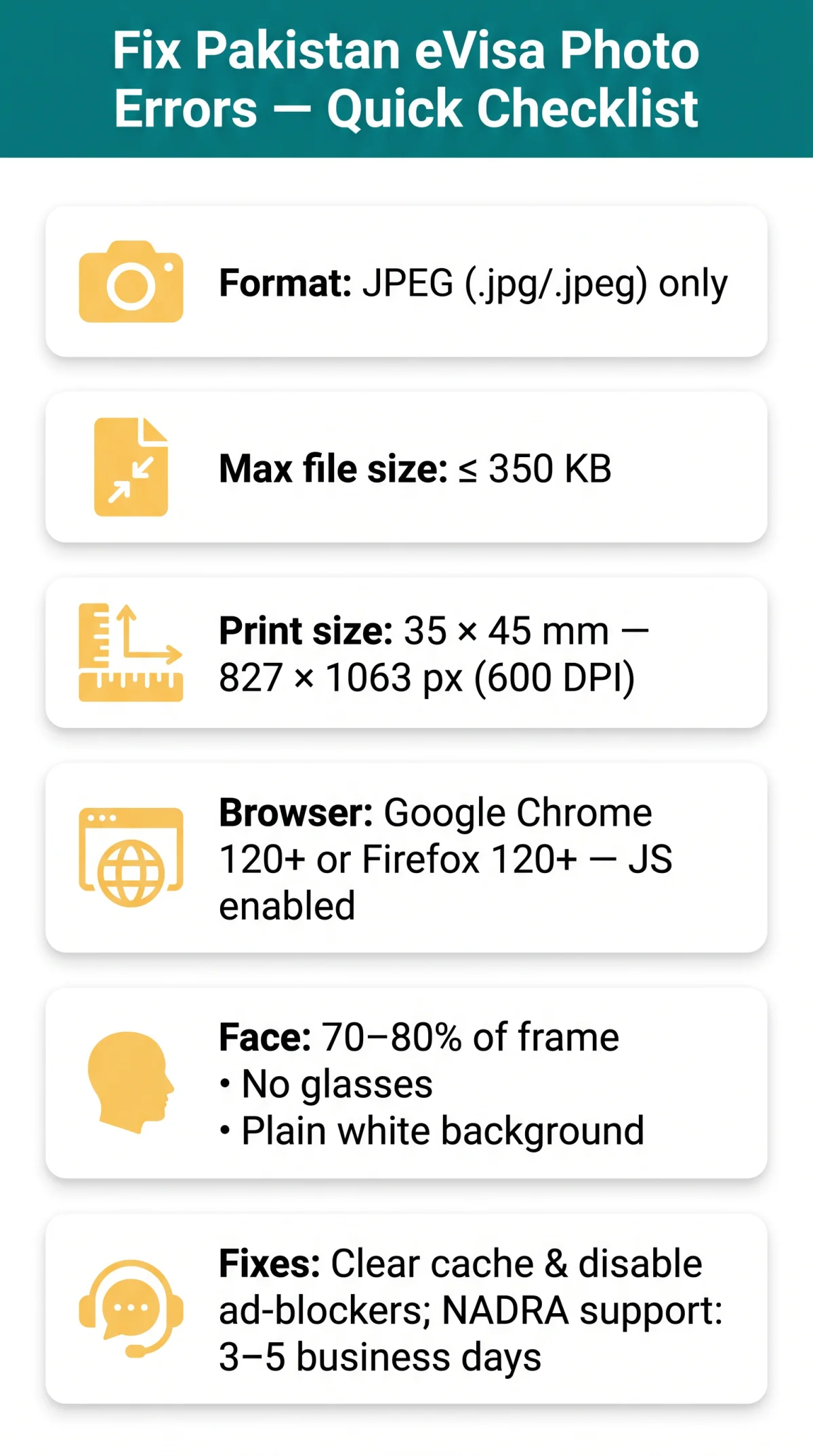
The Pakistan evisa photo upload error occurs when your image fails NADRA’s automated checks for file format, size, or browser compatibility. To resolve this, ensure your photo is a JPEG under 350 KB, sized 35 × 45 mm (827 × 1063 px at 600 DPI), and uploaded using Google Chrome with JavaScript enabled.
The Pakistan eVisa portal requires photos in JPEG format, no larger than 350 KB, and sized 35 × 45 mm (approximately 827 × 1063 pixels at 600 DPI) with a plain white background and sRGB colour space. If your upload fails, convert to JPEG, compress below 350 KB, and use Google Chrome with JavaScript enabled and ad-blockers disabled for visa.nadra.gov.pk.
Last updated: 14 September 2026. Requirements verified against the Pakistan Online Visa System at visa.nadra.gov.pk.
As of 2026, the Pakistan eVisa portal uses computer vision and machine learning algorithms to validate every biometric photograph. British travellers frequently encounter rejection messages when uploading images from smartphones or unsupported browsers. The system silently rejects files with alpha channels, non-standard colour profiles, or excessive EXIF metadata. The portal offers a verification tool to check photograph validity before submission.
Pakistan eVisa Photo Requirements: Format, Size & Dimensions
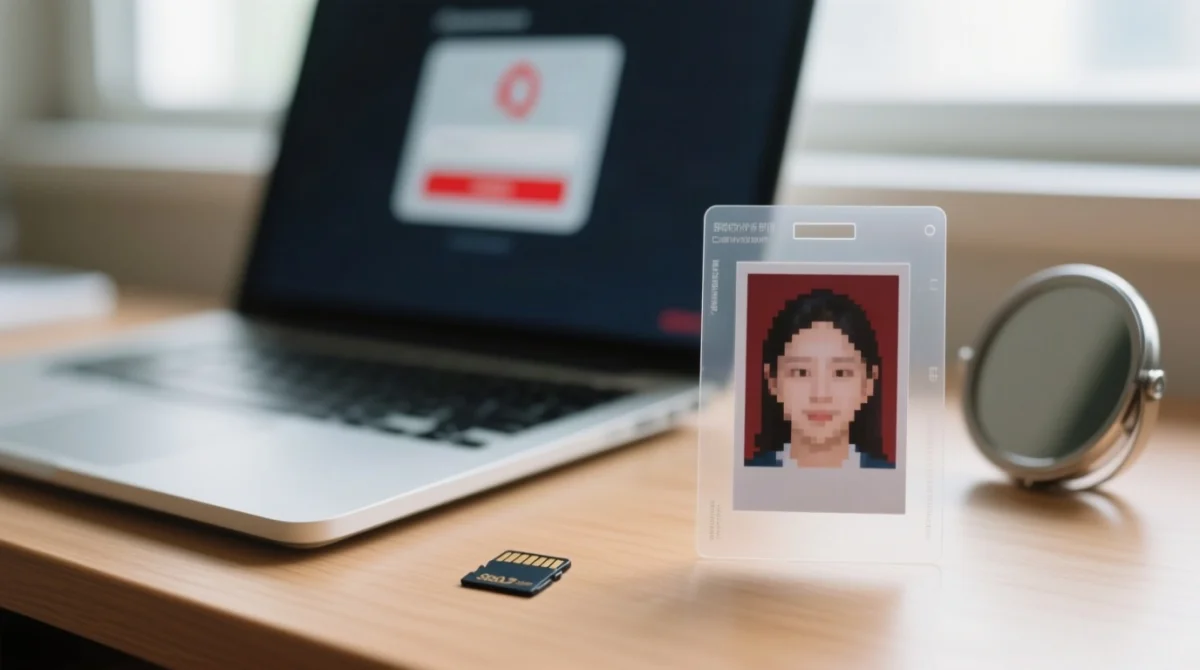
The NADRA validator returns six distinct errors when photographs fail automated validation for file format, pixel dimensions, or maximum file weight. According to the Pakistan Online Visa System at visa.nadra.gov.pk, Pakistan eVisa photographs must meet strict technical parameters. The Pakistan evisa photo upload error is avoidable when every value below is satisfied before submission.
| Parameter | Required Limit | Common Myth | Consequence if Wrong |
|---|---|---|---|
| File format | JPEG /.jpg /.jpeg only | “PNG works too” | “It does not meet format criteria” rejection |
| Max file size | 350 KB | 5 MB (Pak-Identity limit) | “File size exceeds limit” error |
| Dimensions (print) | 35 × 45 mm | 50 × 50 mm (US-style) | “Image dimensions invalid” |
| Dimensions (pixels) | 827 × 1063 px at 600 DPI | No minimum assumed | Silent rejection or blurry crop |
| Background | Plain white, uniform | Light grey acceptable | “Image with non uniform background” |
| Colour space | sRGB | Adobe RGB / CMYK fine | Validator rejects silently |
Accepted File Format: Why Only JPEG Works
NADRA’s validator strips alpha channels, causing PNG transparency to fail. HEIC from iPhone is invisible to the system; WebP and BMP are not recognised. Convert images using (browser-based) or GIMP (desktop). Avoid uploading sensitive originals to unknown third-party sites.
The 350 KB Limit Explained
The Pakistan eVisa portal enforces 350 KB for photographs. The 5 MB limit applies to the separate Pak-Identity system (NICOP/CNIC), and 500 KB applies to PDF document uploads. Compress once using, GIMP “Save for Web”, or Photoshop “Export As”. Check file size on Windows via right-click and Properties; on Mac via Get Info.
Converting Millimetres to Pixels
The formula: 35 × 45 mm at 600 DPI equals 827 × 1063 px. Images below 600 px wide trigger silent rejection. Free resizers include GIMP, Canva, or online tools. The Pakistan eVisa portal verifies dimensions automatically during upload.
Colour Space: Why sRGB Matters
NADRA’s validator silently rejects CMYK and Adobe RGB profiles. Check on Windows via Properties, Details, “Color space”. On Mac, open Preview, go to Tools, Show Inspector, General. Convert to sRGB in GIMP or Lightroom before uploading.
Glasses, Head Coverings & Facial Expression
No eyeglasses permitted. Head coverings allowed but must show the face from chin to forehead with both edges visible. Neutral expression, eyes open, mouth closed. Face must cover 70 to 80% of the frame. Alone in the photograph, plain white background, uniform lighting, no shadows.
Browser & Device Compatibility for Pakistan eVisa Uploads
Google Chrome 120+ and Mozilla Firefox 120+ handle NADRA’s client-side JavaScript validator correctly. Safari users experience silent upload stalls because the validator’s JavaScript fails to execute properly. The Pakistan eVisa portal requires JavaScript enabled and ad-blockers disabled for visa.nadra.gov.pk.
| Browser | Status | Notes |
|---|---|---|
| Google Chrome 120+ | Recommended | Full JS support, fastest validator |
| Mozilla Firefox 120+ | Recommended | Tested and stable |
| Microsoft Edge (Chromium) | Works but less tested | Use Chrome profile for best results |
| Safari (macOS / iOS) | Known issues | Upload script may stall; use Chrome instead |
| Opera / Brave | Disable built-in shields | Built-in ad-blockers may interfere |
Smartphone Users: Fix Hidden Upload Issues
iPhone users must convert HEIC to JPEG: navigate to Settings > Camera > Formats > Most Compatible. Strip EXIF metadata before uploading to prevent auto-rotation, which triggers “Unable to detect face” rejections. Avoid screenshots, which introduce hidden scaling. Android users have fewer format issues but must verify the file is JPEG.
Clear Cache, Disable Extensions & Try Incognito
After a failed upload, the Pakistan eVisa portal caches the rejected state. Clear cache and cookies for visa.nadra.gov.pk, close all portal tabs, open an incognito window, log in fresh, and re-upload. If the upload button is greyed out, disable AdBlocker, Privacy Badger, or NoScript for the portal domain.
File Naming Rules
Filenames with spaces, emojis, or special characters (e.g., IMG_2026-09-14 ✈️.jpg) are rejected silently. Name your file firstname_lastname_visa.jpg with lowercase letters, underscores only, and no spaces.
Session Timeout
The Pakistan eVisa portal session expires after 15 minutes of inactivity. Prepare your photo file before starting the upload, keep the tab active, and re-upload promptly after an error.
Step-by-Step Upload Checklist
A seven-point pre-flight check prevents most Pakistan evisa photo upload errors. Verify every value below before attempting upload on the Pakistan eVisa portal.
- Format:.jpg or.jpeg (not PNG, HEIC, or WebP)
- File size: ≤ 350 KB (check via Properties / Get Info)
- Dimensions: 35 × 45 mm = 827 × 1063 px at 600 DPI (safe zone: 600 to 900 px wide)
- Background: Plain white, uniform, no shadows or gradients
- Colour space: sRGB (not CMYK or Adobe RGB)
- Filename: firstname_lastname_visa.jpg (no spaces, no special characters)
- Browser: Google Chrome or Mozilla Firefox with JavaScript enabled; disable ad-blockers for visa.nadra.gov.pk
Troubleshooting Pakistan eVisa Photo Upload Error Messages
The NADRA validator returns six distinct errors for Pakistan eVisa photo uploads. The validator occasionally produces false positives on ICAO compliant biometric photographs. One Tripadvisor user, Mel C, received the “Unable to locate eyes” error despite a professionally taken photo; after manual resolution, the visa was approved. Each error maps to a specific technical cause and a documented fix.
| Error Message | Cause | Fix |
|---|---|---|
| “Invalid file type” / “It does not meet format criteria” | Photo saved as PNG, HEIC, or WebP | Re-save as .jpg using or any image editor. iPhone: Settings → Camera → Formats → Most Compatible. |
| “File size exceeds limit” | File > 350 KB | Compress once with or “Save for Web” in GIMP/Photoshop to ≤ 350 KB. |
| “Image dimensions invalid” | Wrong aspect ratio or < 600 px wide | Resize to 827 × 1063 px (35 × 45 mm at 600 DPI) using GIMP or an online resizer. |
| “Image with non uniform background” | Shadows, gradients, or off-white tones | Re-take against a plain white wall with even, front-facing window light. |
| “Unable to detect face” / “Unable to locate eyes” | Face too small, obscured by glasses/hair, or EXIF auto-rotation | Crop so face = 70–80% of frame; remove glasses; strip EXIF metadata before upload. |
| Upload button frozen / page unresponsive | JavaScript blocked by ad-blocker or session expired | Use Google Chrome with JS enabled; disable AdBlocker/uBlock Origin for visa.nadra.gov.pk; clear cache and retry in incognito. |
Match the exact on-screen message to its row above and apply the corresponding fix before retrying the Pakistan eVisa submission.
Next Steps & Support for Failed eVisa Photo Uploads
If self-service fixes fail, the Pakistan evisa photo upload error can be escalated to NADRA support. Your visa fee is not lost if the photo upload fails; return to your Pakistan eVisa application using your reference number to retry without paying again.
Prepare your corrected JPEG file
Ensure your photo is ≤350 KB and 827 × 1063 px before starting.
Use Google Chrome with JavaScript enabled
Disable ad-blockers for the visa.nadra.gov.pk domain.
Contact NADRA support if the error persists
Reach out at visa.nadra.gov.pk/contact/.
Include your application reference number
Attach a screenshot of the error and the photo file.
Expect a response within 3 to 5 business days
NADRA support will review your submission and reply.
For urgent UK-traveller cases
Contact the British High Commission in Islamabad at [email protected].
This is an independent informational portal; verify all contact details on the NADRA website before sending personal data.
FAQ: Pakistan eVisa Photo Upload Errors
What file format does the Pakistan eVisa portal accept?
The portal accepts JPEG only (.jpg or.jpeg). PNG, HEIC, WebP, and BMP files trigger an ‘Invalid file type’ or ‘It does not meet format criteria’ error. NADRA’s validator strips alpha channels, causing PNG transparency to fail. Convert your image to JPEG using before uploading.
What is the maximum photo file size for the Pakistan eVisa?
The maximum file size is 350 KB. The 5 MB limit applies to the separate Pak-Identity system, and 500 KB applies to PDF document uploads. Compress your photo using or GIMP to get under 350 KB. Do not repeatedly recompress the file.
What are the required Pakistan eVisa photo dimensions?
The required print dimensions are 35 × 45 mm. In pixels, this equals approximately 827 × 1063 px at 600 DPI. Keep your image within the safe zone of 600 to 900 px wide to avoid resolution errors or silent rejection by the NADRA validator.
Why does my upload button not respond at all?
JavaScript may be disabled, or a browser extension like an ad-blocker is blocking the upload script. Switch to Google Chrome 120+ or Mozilla Firefox 120+, ensure JavaScript is enabled, and temporarily disable ad-blockers for the visa.nadra.gov.pk domain to restore button functionality.
Why was my 5 MB photo rejected by the system?
The 5 MB limit belongs to the Pak-Identity system (NICOP/CNIC), not the eVisa portal. The Pakistan eVisa portal strictly enforces a 350 KB maximum file size for photographs. Compress your file to meet the eVisa requirement and resolve the Pakistan evisa photo upload error.
How do I check if my photo uses sRGB colour space?
On Windows, right-click the file, select Properties then Details, and look for ‘Color space’. On Mac, open the file in Preview, go to Tools then Show Inspector then General. If it shows Adobe RGB or CMYK, convert it to sRGB in an image editor before uploading.
Why does the portal say ‘Unable to detect face’?
This happens if your face is too small in the frame, obscured by hair or glasses, or if the image auto-rotated due to EXIF metadata. Crop the photo so your face takes up 70 to 80% of the frame, remove glasses, and strip EXIF data before retrying.
Will I lose my visa fee if the photo upload fails?
No, your visa fee is not lost. Return to your application using your reference number, correct the photo file, and retry the upload. You do not need to pay the fee again to submit your corrected photograph. If issues persist, contact NADRA support.